The Leads section is the centralized lead log inside the Customer Hub. Every lead captured through any platform-managed channel appears here automatically and in real time — no manual entry required. This includes leads from Google Ads, organic search, Google Business Profile, Facebook Ads, phone calls, onsite chat, chatbot conversations, GBP chat, and any other marketing effort being managed for your business.
The Leads section displays a filterable, searchable table of all captured leads. Each lead entry shows the lead ID, date and time, name, phone number, email, lead type, and the channel it came from. You can filter by date range, lead type, and channel, and search by name, email, or phone number.
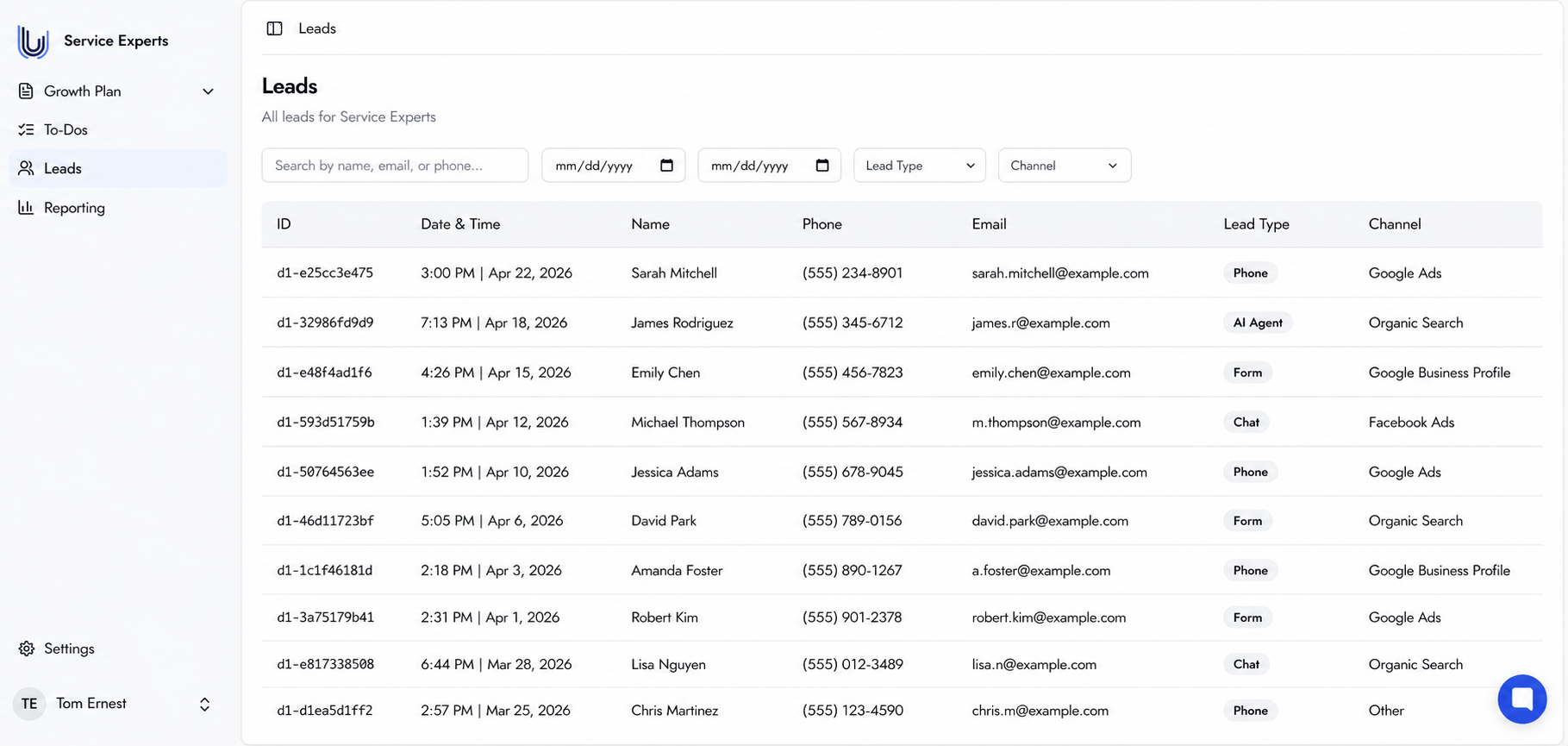
The Leads table — all leads captured across every active channel, updated in real time.
Clicking on any lead opens its detail page, which shows the full interaction history for that contact. Depending on the lead type:
Phone leads — listen to the full call recording and read the AI-generated text transcript of the conversation.
Form leads — see all form fields that were submitted. Forms can come from a landing page or directly from your website — all tracked regardless of where they are hosted.
Chat leads — read the full chat transcript from chatbot, onsite chat, or GBP chat interactions.
Every interaction is logged automatically. No manual effort is required to capture or organize this data.
Leads begin appearing once the Tracking system is live and active. The page will show no results until tracking is configured and the first lead is captured. Completing the Setup Tracking To-Do is the prerequisite for leads to appear here.
No action is required. Leads are captured and logged automatically by the Tracking system as soon as it is live.
Yes — if your CRM is connected through the Automated CRM Workflows To-Do, leads are automatically pushed to your CRM as well.
Yes — lead export functionality is coming to the platform. This feature is not yet available in the current version of the Customer Hub.
Yes. In addition to viewing leads in the Lead Hub, you can set up personal email or SMS notifications in the Settings section under Lead Notifications, or through the Lead Notification Preferences To-Do. You can add up to 3 email addresses to notify every time a lead is generated.